Late alpha · 0.9.1

A complete desktop built around niri, the scrollable-tiling Wayland compositor. Set up once at installation, never touched again.
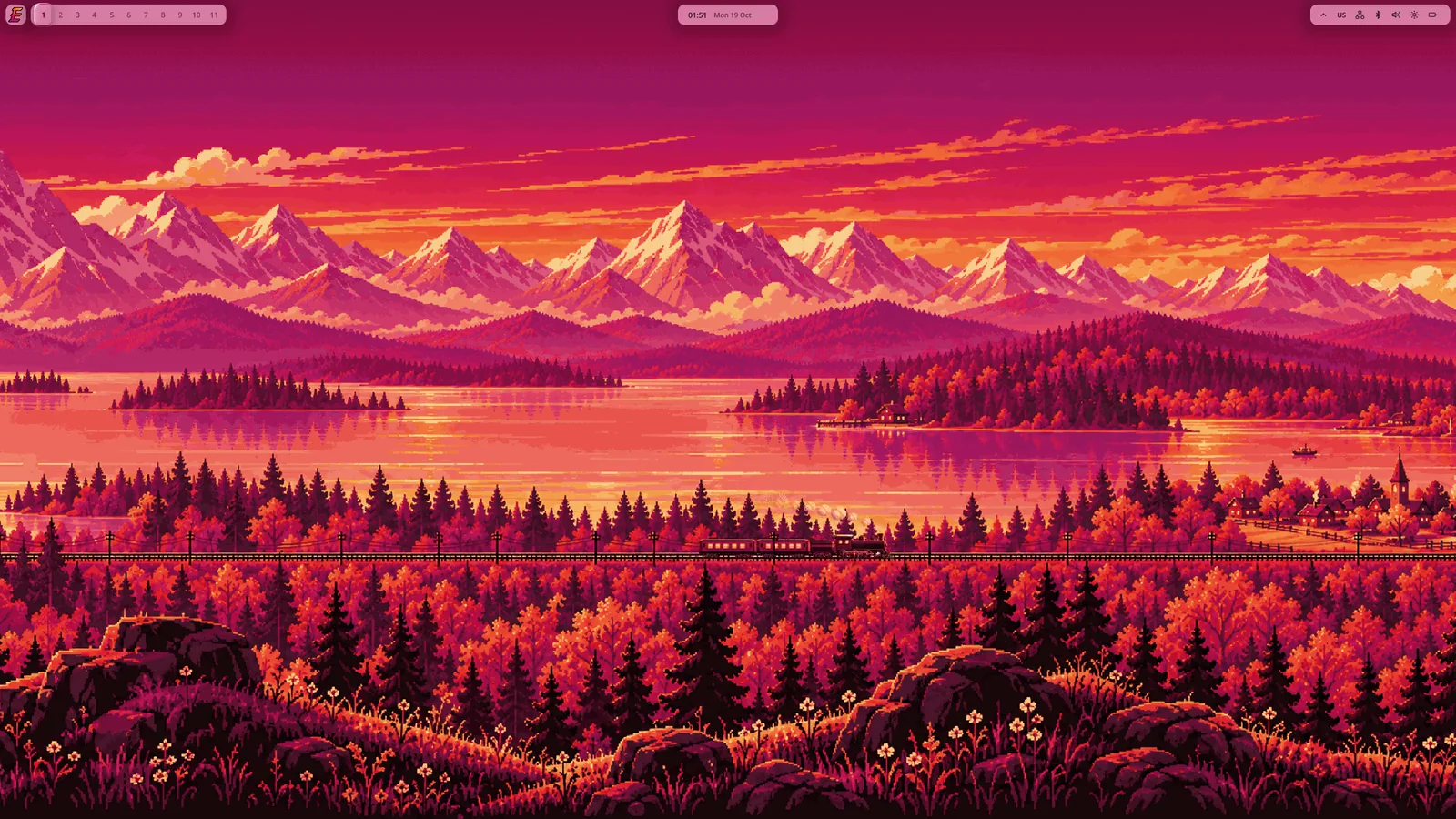
Ready on first start
Bar, launcher, dock, lock screen and keys are set up.
Your files stay yours
We never write to your files after installation.
Updates you can undo
On btrfs, a snapshot before every package change.
Secure Boot
Starts with Secure Boot on. Enrol our key once.
Programs & Updates
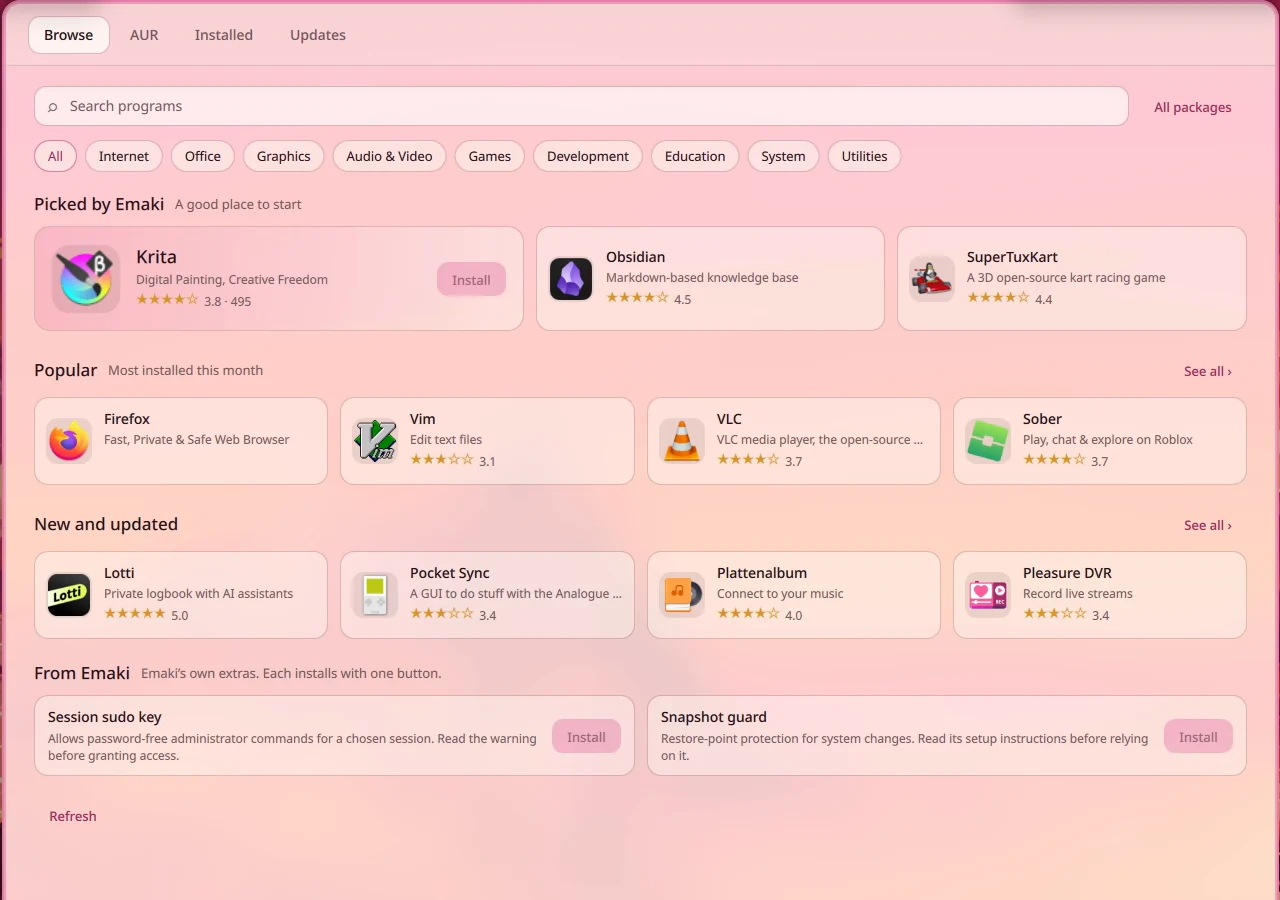
Programs install with one button: find one and press Install. No terminal.
Updates are in the same window, and on btrfs so is the way back to the system from before an update.
Install in 4 steps
You need a USB stick of 8 GB or more and a UEFI computer.
-
1
Write to a USB stick
Everything on the stick is erased. On Linux:
sudo dd if=emaki-0.9.0-x86_64.iso of=/dev/sdX bs=4M oflag=sync status=progressOn Windows or macOS: balenaEtcher, or Rufus in DD Image mode.
-
2
Start from the stick
Choose the stick in your computer's boot menu. Emaki needs a UEFI computer. Secure Boot can stay on.
The stick starts a full Emaki desktop. Try it before installing: you see how Emaki runs on your computer before anything is written to the disk. On NVIDIA the stick uses the open driver, the installed system NVIDIA's own.
-
3
Enrol the key once
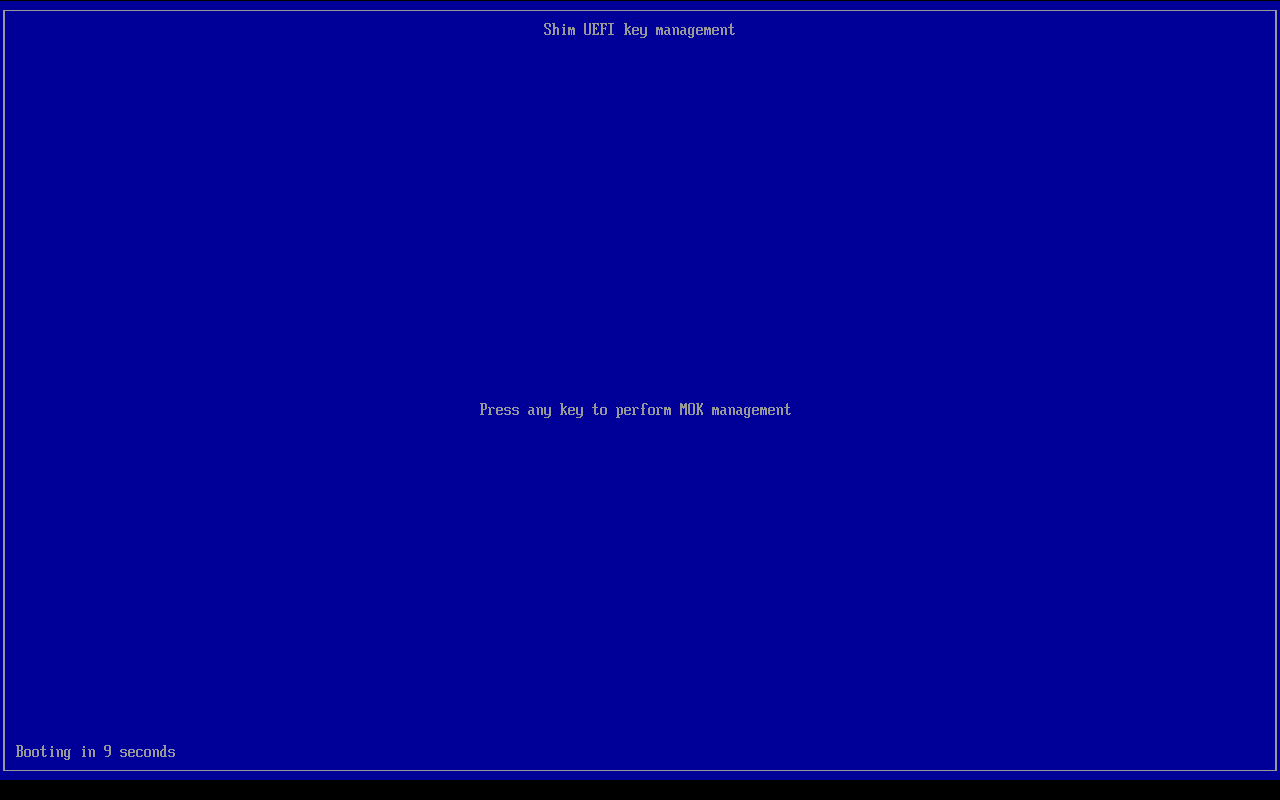
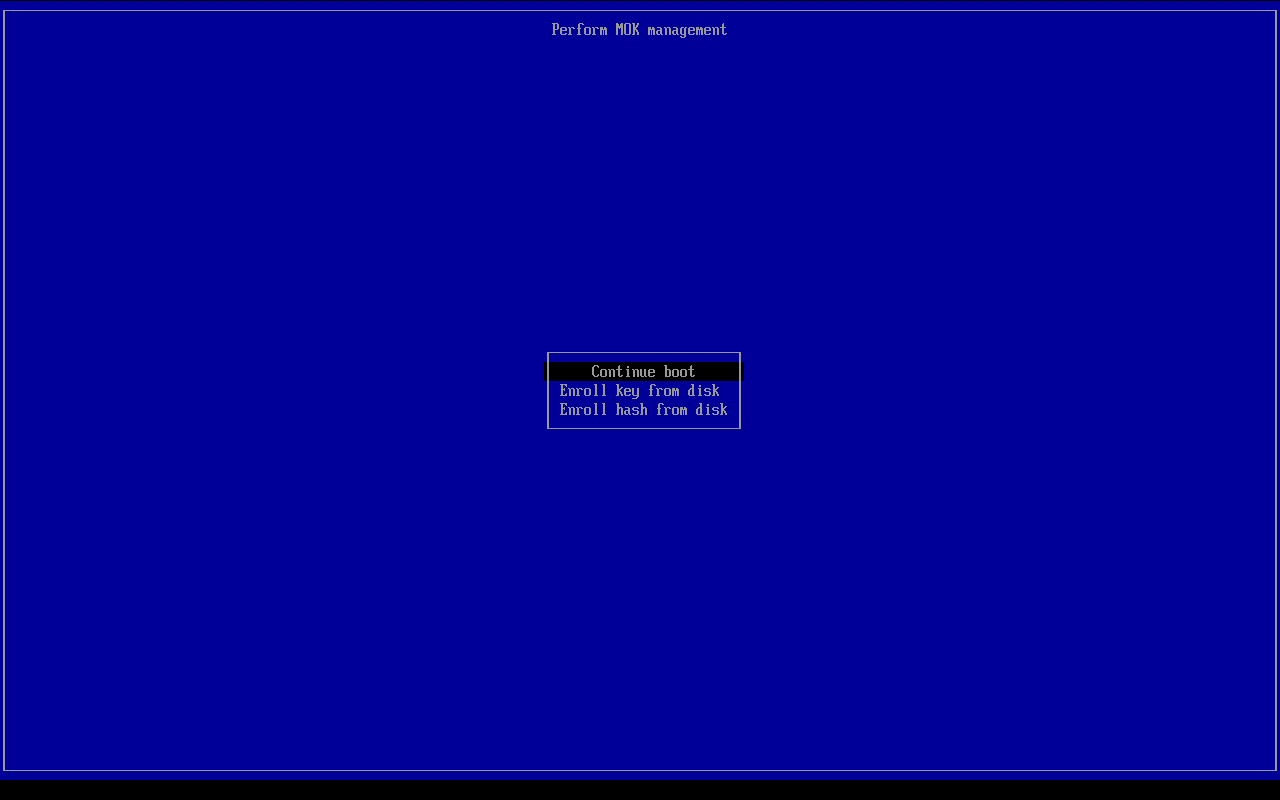
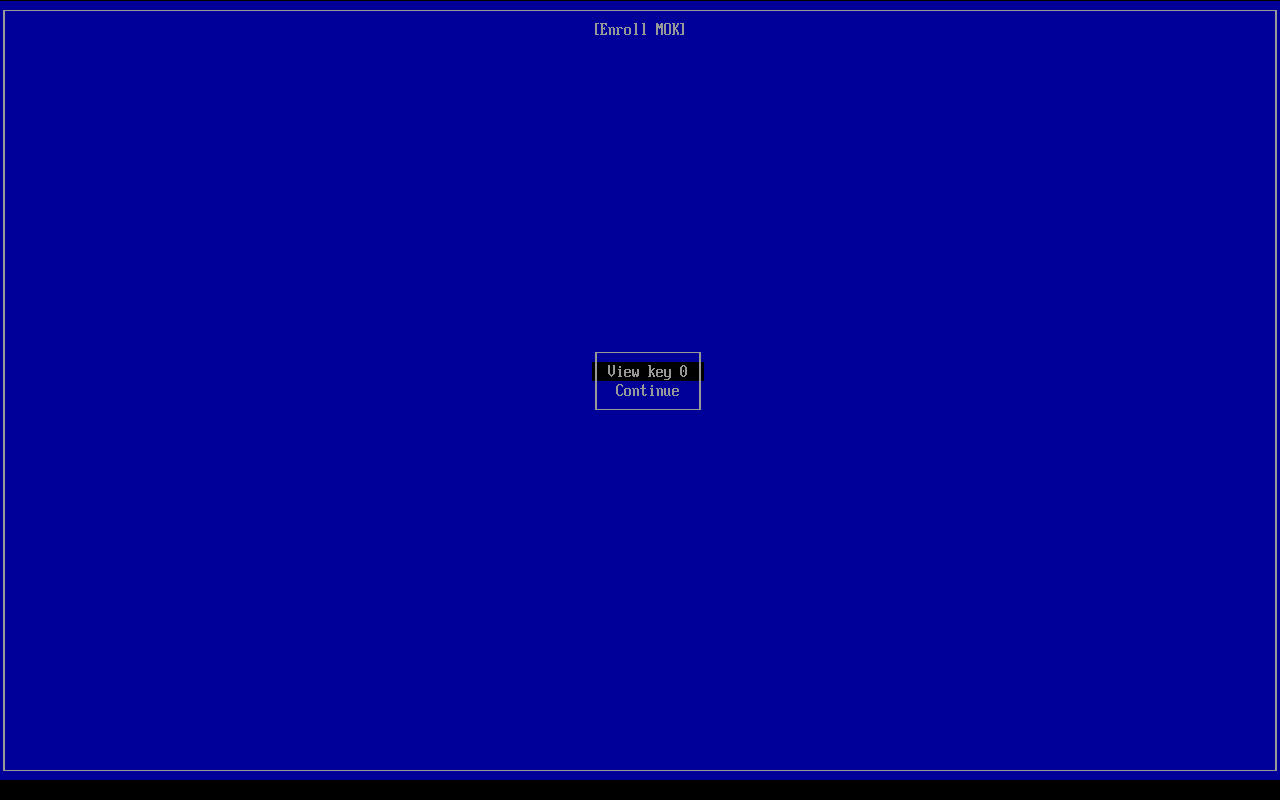
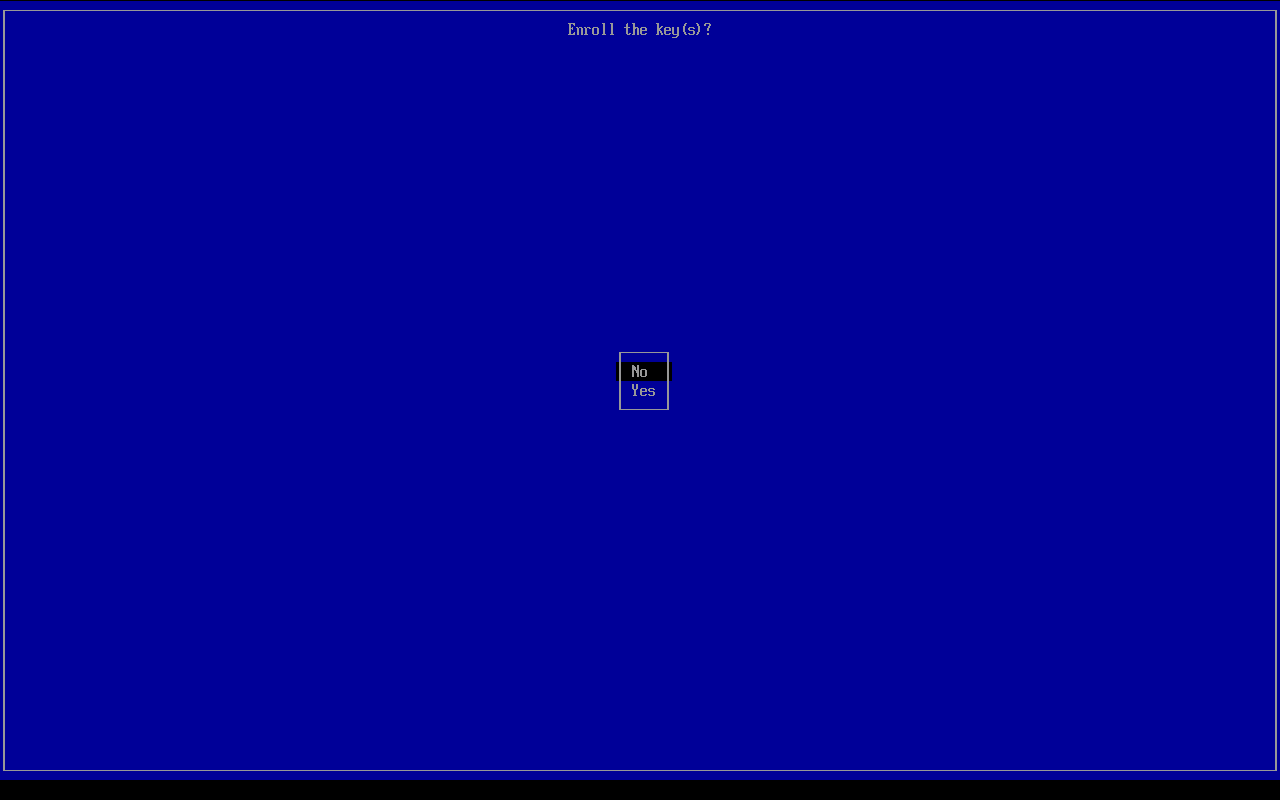
On “Security Violation” choose OK. In the blue MokManager screen press any key within 10 seconds, then Enroll key from disk →
EMAKI→emaki.cer. View key, compare the SHA‑1 fingerprint, then Continue → Yes → Reboot. With Secure Boot off this step does not appear.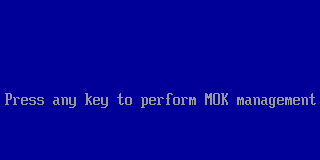 Press any key
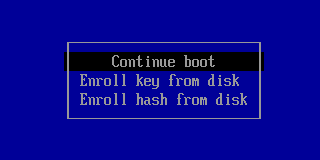 Enroll key from disk
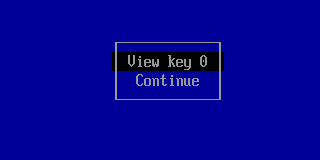 View key, Continue
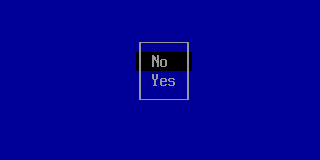 Yes, then Reboot
-
4
Install
The live session opens the installer by itself. Pick your disk, btrfs or ext4, and press Install. To open it again: Install Emaki in the launcher.
- Key fingerprint, SHA-1 (shown by MokManager)
D5:69:0F:44:91:14:4D:FF:EC:8B:F6:77:CC:BE:06:0A:39:5F:2F:26- SHA-256 of emaki.cer
0E:BC:6E:A4:01:CF:16:0C:76:32:E3:4F:54:BD:F7:B8:9E:60:BB:E3:24:DE:10:B2:E4:AE:06:27:A8:96:D5:D6
Verify the download
A checksum shows that the image arrived whole; the signature shows that we made it.
SHA-256 of emaki-0.9.0-x86_64.iso
58795e17cae51df16692278b8934591a025bada4de29423b16f62fde181f2ad0
Checksum
Download the .sha256 file next to the image, then:
- Linux
sha256sum -c emaki-0.9.0-x86_64.iso.sha256- macOS
shasum -a 256 -c emaki-0.9.0-x86_64.iso.sha256- Windows
Get-FileHash .\emaki-0.9.0-x86_64.iso -Algorithm SHA256
Signature
Optional and stronger: the .sig file and the signing key.
gpg --show-keys emaki-signing-key.asc
  6685 6995 6D2D 7478 47D8  7D01 F626 80BE 5833 63AC
gpg --import emaki-signing-key.asc
gpg --verify emaki-0.9.0-x86_64.iso.sig emaki-0.9.0-x86_64.iso
Expect “Good signature from Emaki Package Signing <packages@emaki.sh>”.
Sources Next to the image, SOURCES-ISO.txt links the source of every Emaki package in it. Emaki's own code is on GitHub; the release page also carries emaki.cer.
New in 0.9.1
- Moving saved passwords to the new wallet no longer stops at a key without an application name.
- The launcher shows the Emaki pixel mark.
- The lock and login screens use your current wallpaper.
- Dolphin uses the Emaki colours.
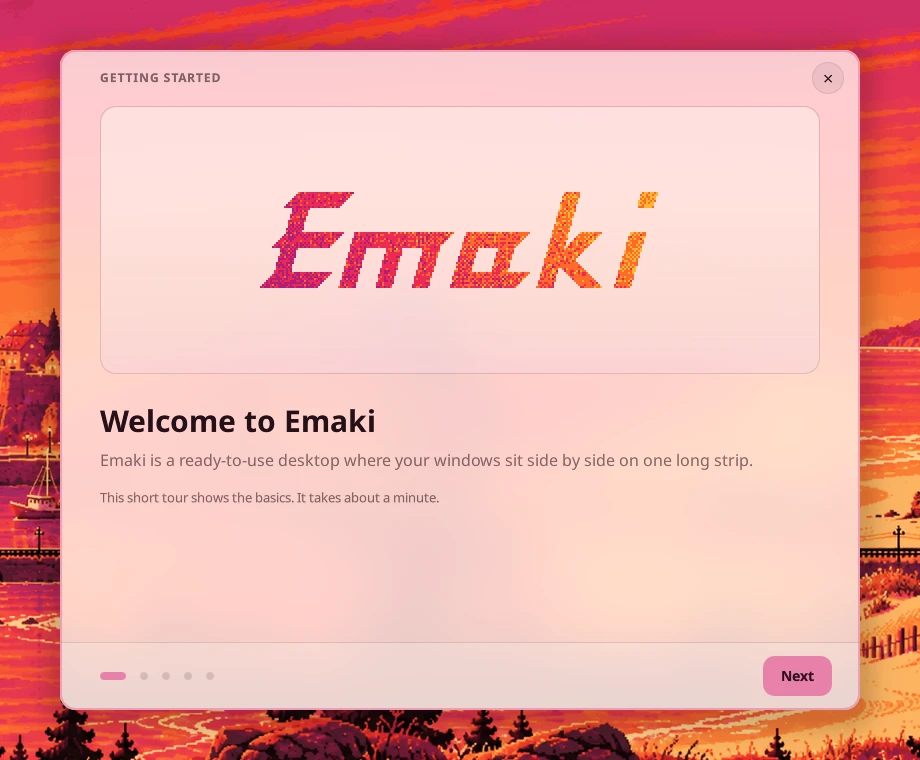
Earlier in 0.9: Secure Boot from the first start, the light theme with the Rose accent, the Welcome tour, window pictures on Alt+Tab, and a time zone map and partitioning in the installer.
What we tested
Emaki is a late alpha. Every release is installed and updated in virtual machines at several screen sizes and on two real computers: an AMD laptop and a MacBook.
Not tested yet: NVIDIA graphics on real hardware, and Windows with BitLocker beside Emaki. If your computer is like that, try the stick first and tell us how it went.
Known problems are listed in the 0.9.1 release notes on GitHub.
About
What Emaki is
A complete niri desktop that sets up your config once, at installation, and never touches it again. The decisions are already made — bar, launcher, dock, lock screen, keybindings, the lot — so you install it and start working instead of reading twelve wikis.
Your files stay yours
Our defaults are a separate file; yours overrides it.
Updates you can undo
btrfs snapshots and a way back from the boot menu.
Arch underneath
No fork, no held-back packages. Our part is the desktop.
A look around
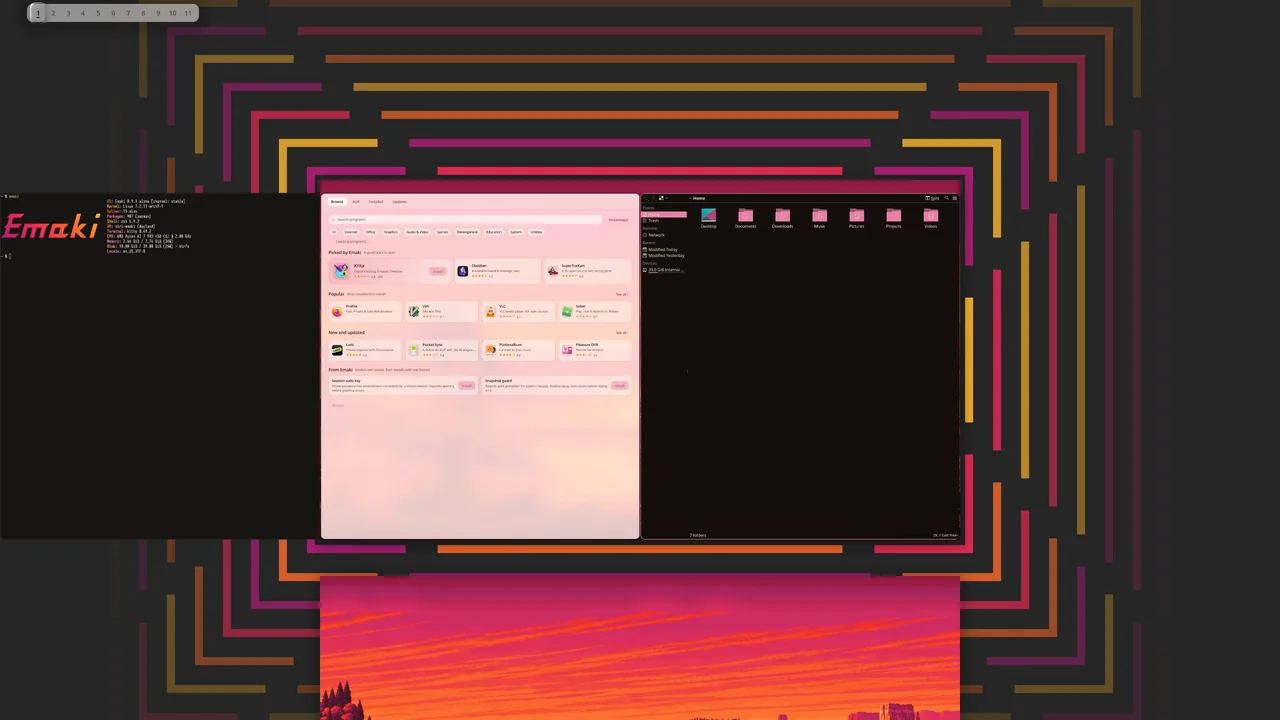
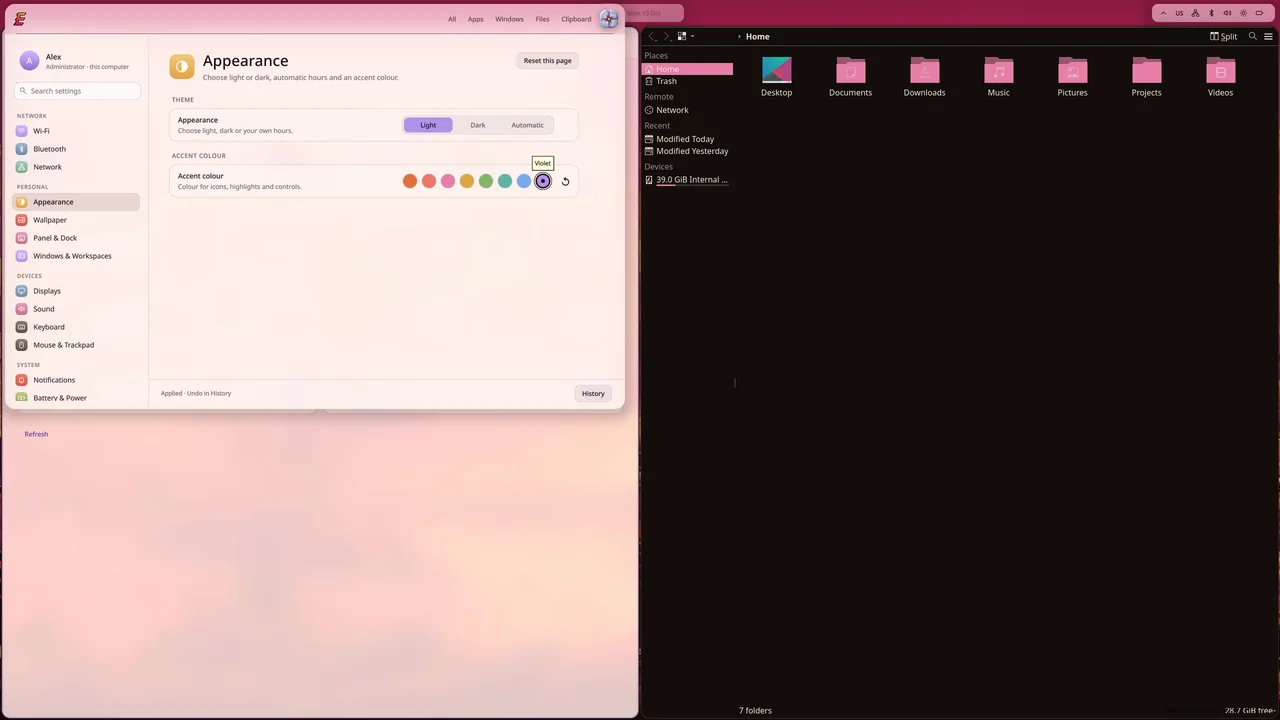
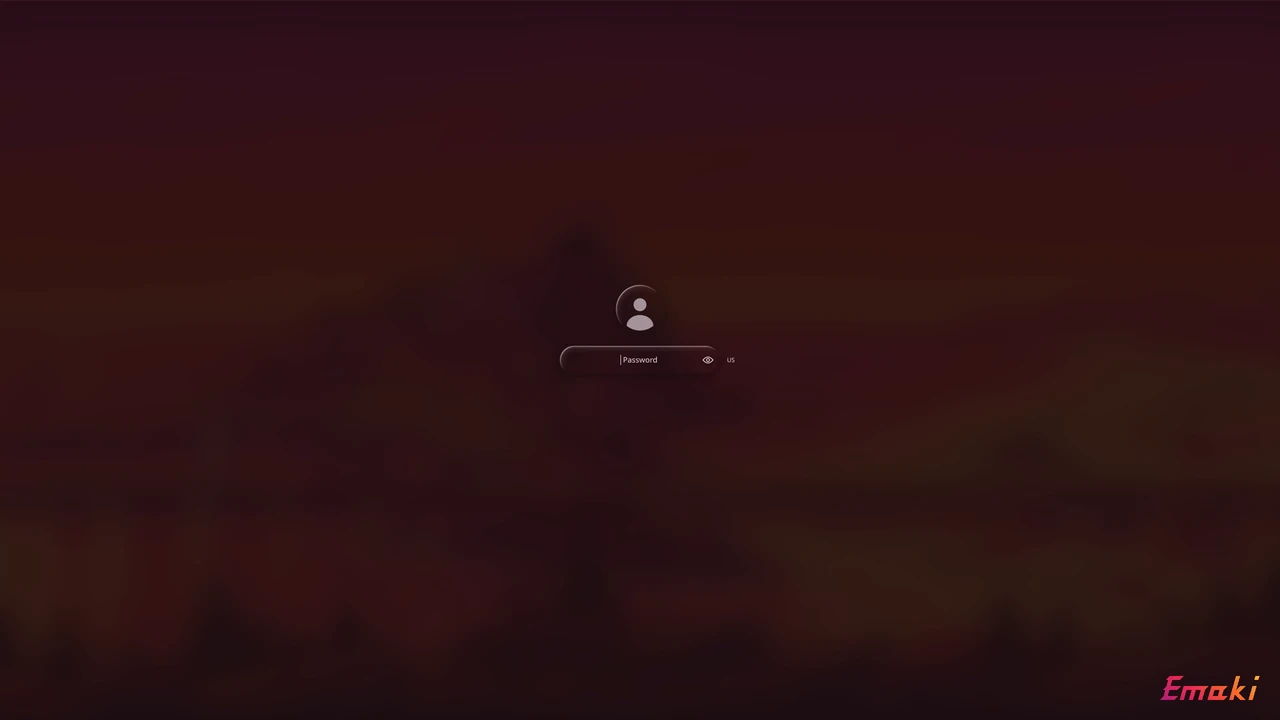
Principles
Four rules behind every decision in Emaki.
Your changes are yours
Our defaults ship as a separate file that belongs to the package. Your changes go in your own file, which includes ours and overrides it where niri lets a later setting win: key bindings, gaps, the keyboard and touchpad blocks. We never write to your file; you never have to edit ours. Updates therefore cannot conflict with your customisations.
Your disk, your call
The filesystem is yours to choose. If you pick btrfs at install time, Emaki sets up the snapshot tooling for you: a snapshot before every package change, and a way back from the boot menu. If you pick ext4, you get ext4. Nothing here is forced on you.
Arch underneath
Emaki is Arch underneath. We do not fork it, we do not hold packages back, we do not pretend rolling release is something else. When Arch breaks, Arch breaks. Everything else is Arch, and we say so out loud.
Made to be read
One setting lives in one place. Nothing is regenerated behind your back. Every piece of state can be queried from the terminal, and every setting can be changed from it.
Licence and source
Emaki is free software: you can use, study, share and change it.
GPL-3.0-or-later
Copyright © 2026 Artur Yakymenko. Patches to other projects keep those projects' licences: the niri patches are GPL-3.0-or-later like niri itself. Software included in the image ships with its own licence and copyright notices; Settings › About shows where the full texts are installed.
Source code
The Emaki repository is on GitHub. Next to each image, SOURCES-ISO.txt links the source archive of every Emaki package in it.
This site
Pixel type: Departure Mono by Helena Zhang. Text: Noto Sans by the Noto Project Authors. Both under the SIL Open Font License 1.1 (1, 2).
Docs
How to use Emaki
Everything you need after the first start, on four short pages.
niri for normal people
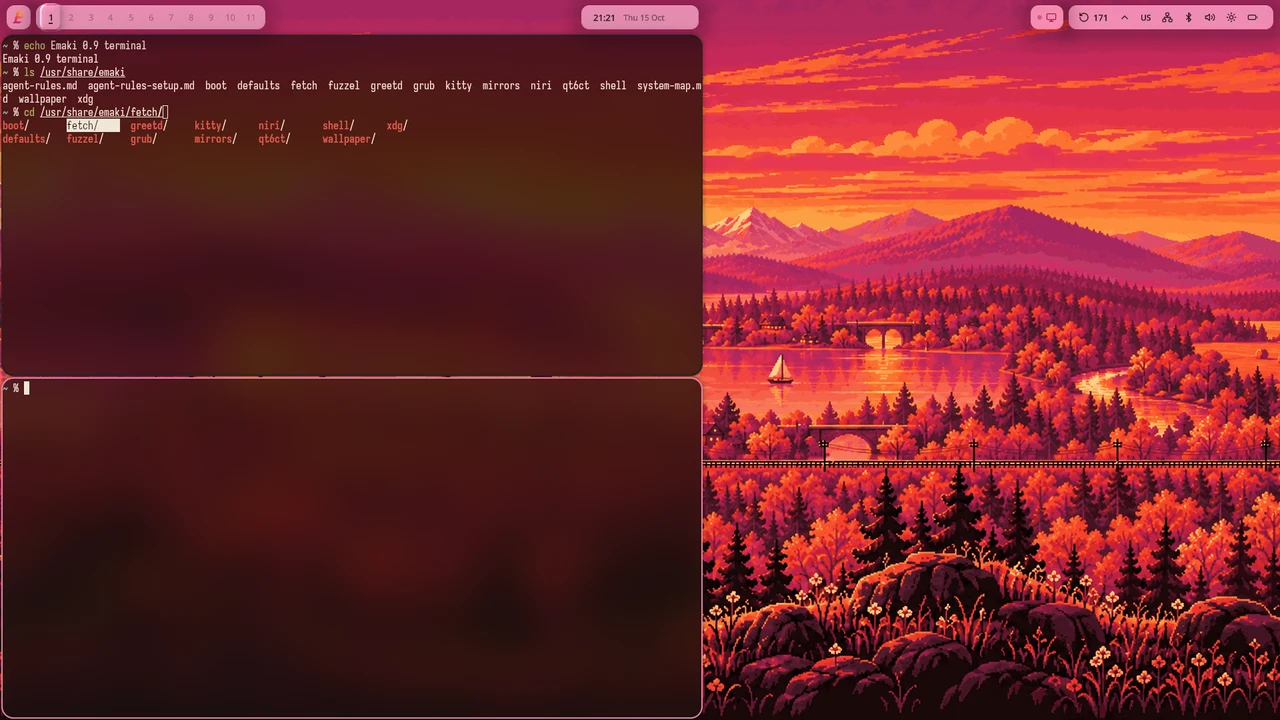
Most desktops squeeze windows into the screen. niri does not. Your windows sit side by side on one long strip, and the screen is a view onto part of it. A new window opens to the right of the current one; nothing else gets smaller.
Move along the strip with Super ← / →. Windows that do not fit peek in at the edge, so you always see that there is more.
Strips are stacked like floors: Super ↑ / ↓ moves between them. Super O zooms out and shows all of them at once.
A window's width is yours: Super R cycles a third, a half and two thirds of the screen. This site works the same way: it flows to the right, and the button in the top-left corner zooms out.
Keys
Super is the key with the Windows logo. Super / searches all of them.
- Super Enter
- Terminal
- Super D
- Launcher
- Super E
- Files
- Super Q
- Close window
- Super V
- Clipboard history
- Super L
- Lock screen
- Super ← →
- Next column
- Super ↑ ↓
- Window or strip
- Super Shift ←
- Move column
- Super O
- Overview
- Super R
- Column width
- Super F
- Fullscreen
- Alt Tab
- Switch windows
- Super Shift F
- Float or tile
- Super Shift S
- Screenshot
- Super Alt R
- Record screen
- Super Esc
- Power menu
- Super /
- Search all keys
Updating and going back
Emaki's packages come from the signed [emaki] repository; everything else comes from Arch as usual.
One command
sudo emaki-updateType your password, read the list, and press Enter at each question. Plain sudo pacman -Syu still works. Before downloading, the command checks that there is enough free space, and stops if there is not.
The update window
The desktop checks once a day and shows an indicator on the bar. Select it, or open Programs & Updates from the launcher. It lists updates by source with their sizes, and warns about Arch news that asks for manual steps. After a kernel update, restart the computer.
Going back on btrfs
Every package change takes a snapshot first. If an update breaks something, restart; in the boot menu open Emaki snapshots and pick the snapshot taken before the update. The desktop then offers Keep this state. Files in your home are on their own subvolume and are not rolled back.
Going back on ext4
There are no snapshots. If a new kernel is the problem, choose the linux-lts entry in the boot menu. Otherwise reinstall the previous package from the cache with sudo pacman -U. If the desktop does not start, Ctrl Alt F3 opens a text console.
FAQ
Does it work with Secure Boot?
Yes. A new installation sets it up when Secure Boot is on; you enrol Emaki's key once.
Can it live beside Windows?
Yes, with its own startup partition. Keep your BitLocker recovery key outside the computer: Windows with BitLocker and Secure Boot was not tried on a real PC yet.
NVIDIA?
Not tested on real hardware with Secure Boot yet.
Will an update overwrite my config?
No. Your file includes ours and overrides it; we never write to yours.
Hibernation?
Please do not use it yet. The installer does not set it up.
More?
Coming soon. Until then, ask on GitHub.
Community
Talk, report, help
Where to ask, where to report a problem, and how to help.
Report and help
Reports from real computers help most right now.
Report a problem
Open an issue on GitHub. Check the known problems in the release notes first. A good report says:
- the Emaki version (Settings › About) and your computer's model;
- whether Secure Boot is on;
- what you did, what you expected, and what happened;
- a photo of the screen, if the problem is on screen.
Before you post Never post passwords, keys or recovery codes.
Security problems go to security@emaki.sh, not to public issues. Conduct concerns: conduct@emaki.sh.
It did not start?
Start from the stick again and tell us on Discord or in a GitHub issue what you saw. A photo of the screen helps.
Help the project
Try it on real hardware
An installation report from a computer we could not test: NVIDIA graphics with Secure Boot, or Windows with BitLocker beside Emaki. Tell us what worked and what did not.
Tell people
Share a screenshot of your desktop on r/emaki.
Fix a word
A text that is unclear is a bug too. Report it on GitHub.